Portugal vACC Euroscope Installation Guide
Portugal vACC TopSky adaptation
Updating
If you are merely updating your setup:
-
Download the LPPC Update-Package. Extract the contents of the zip file into
%appdata%\EuroScope -
yeah that's it
Full Installation
If you are installing for the first time, or your setup is FUBAR:
-
Install or update the Microsoft Visual C++ Redistributable 2015-2022 (x86) package.
-
Download and install TrackAudio 1.3.3.
-
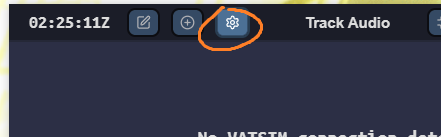
Open TrackAudio and click on the settings cog.
-
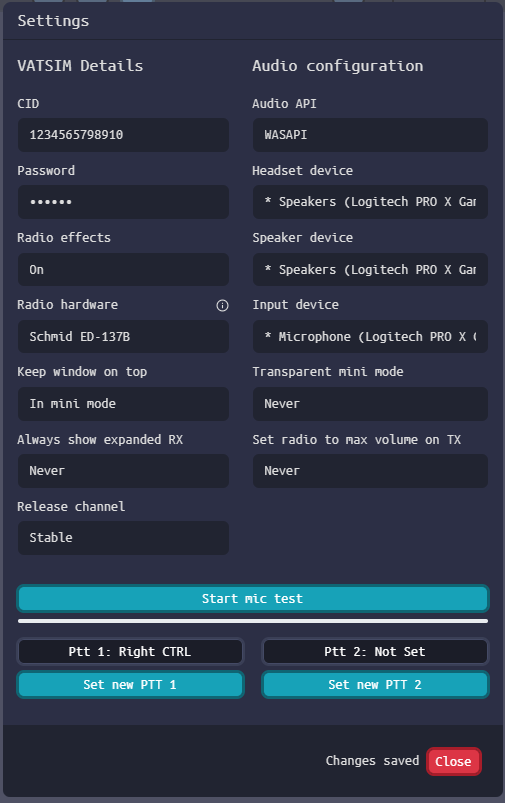
Fill out the CID and password fields with your VATSIM credentials, select your appropriate hardware devices, and at least a PTT 1 key (we recommend to NOT use Left Ctrl to avoid spurious transmissions when copying and pasting). The remaining settings may be set according to your preference, but it is recomended to be set as per below.
-
Download and install VACS 2.3.0.
-
Open VACS. Open the settings menu, double check your hardware devices are correctly selected, then click
Transmit.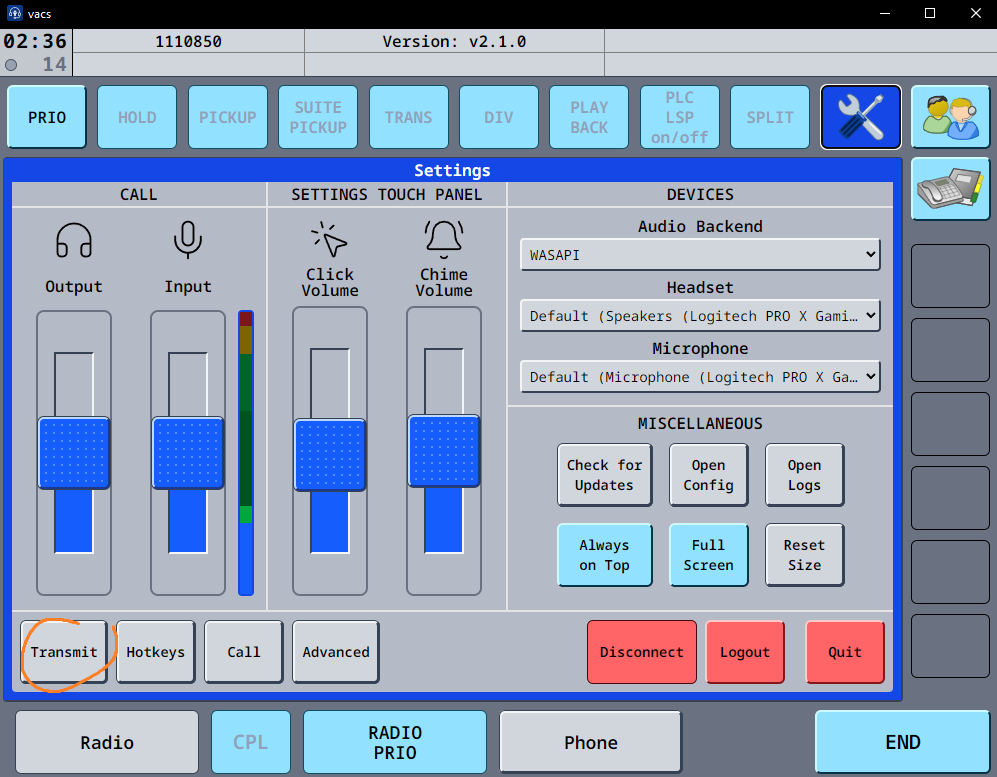
-
Set
MODEtoVoice activation, then click X to close theTransmit Configwindow.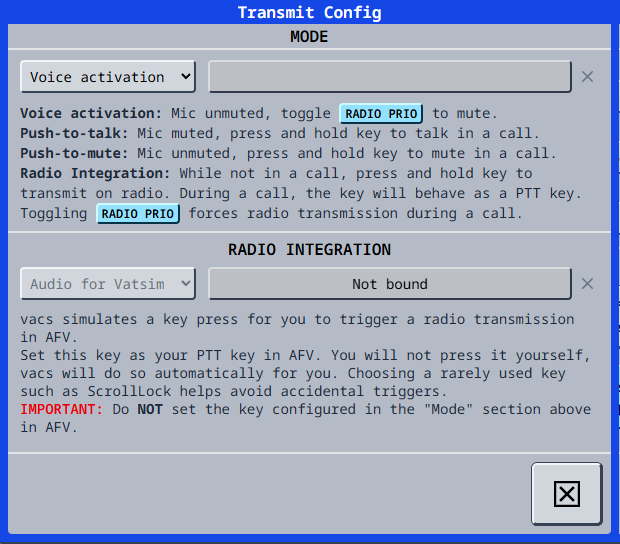
-
Click
Hotkeys.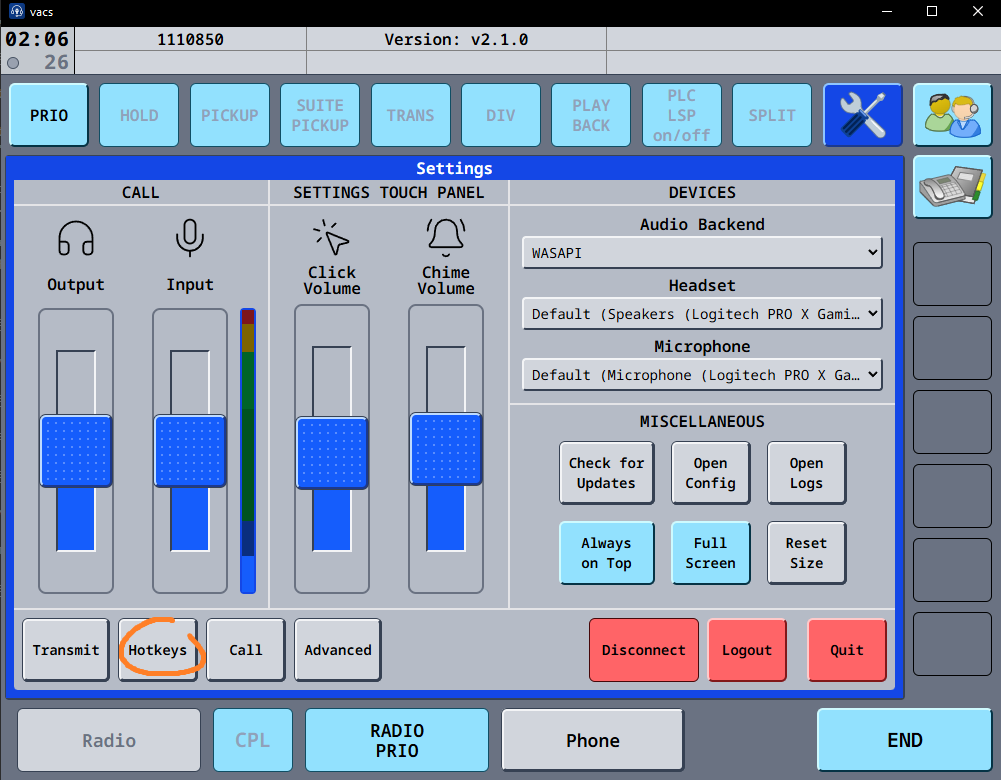
-
We recommend to set the same key for
Accept first callandEnd active call(must be different than TrackAudio PTT), then click X to close theHotkeys Configwindow.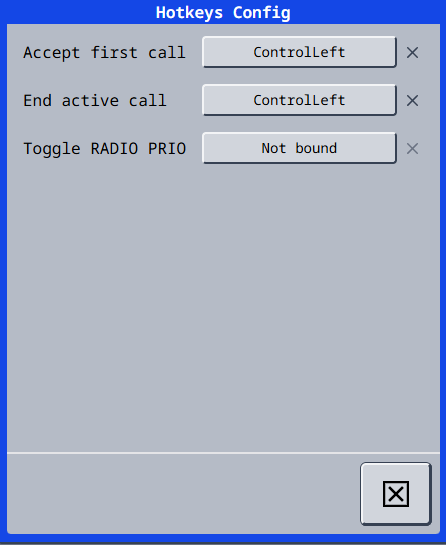
-
Download and install EuroScope 3.2.9.
-
Download the LPPC Install-Package. Extract the contents of the zip file into
%appdata%\EuroScope -
Navigate to
%appdata%\EuroScope\LPPC\Plugins\topskyand open theTopSkyCPDLChoppieCode.txt. Replace the file's contents with your Hoppie code. If you do not have a code you need to request one. -
Open EuroScope from the Windows Start menu. When prompted to
Open a profile file, navigate to%appdata%\EuroScopeand open theLPPC APS.prffile when controlling APP and lower positions, or theLPPC ACS.prffile when controlling CTR enroute positions.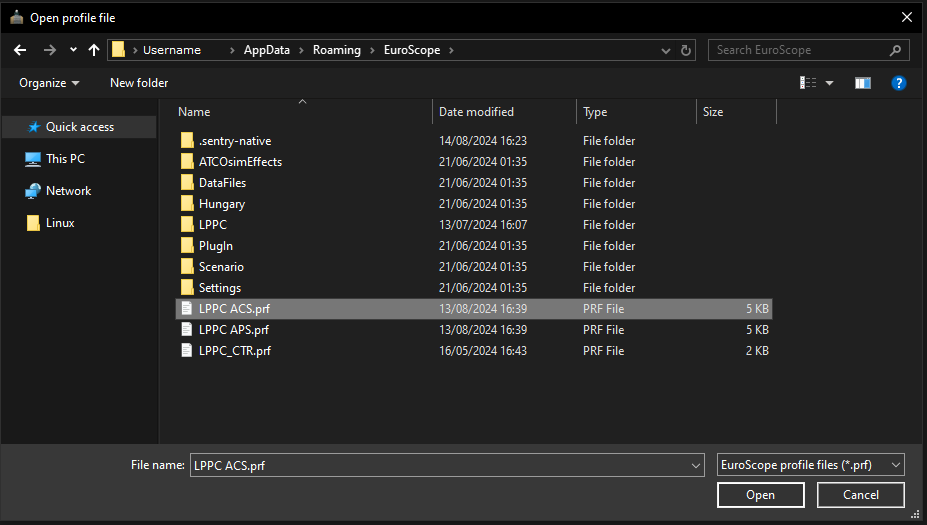
-
EuroScope will now load into this window.
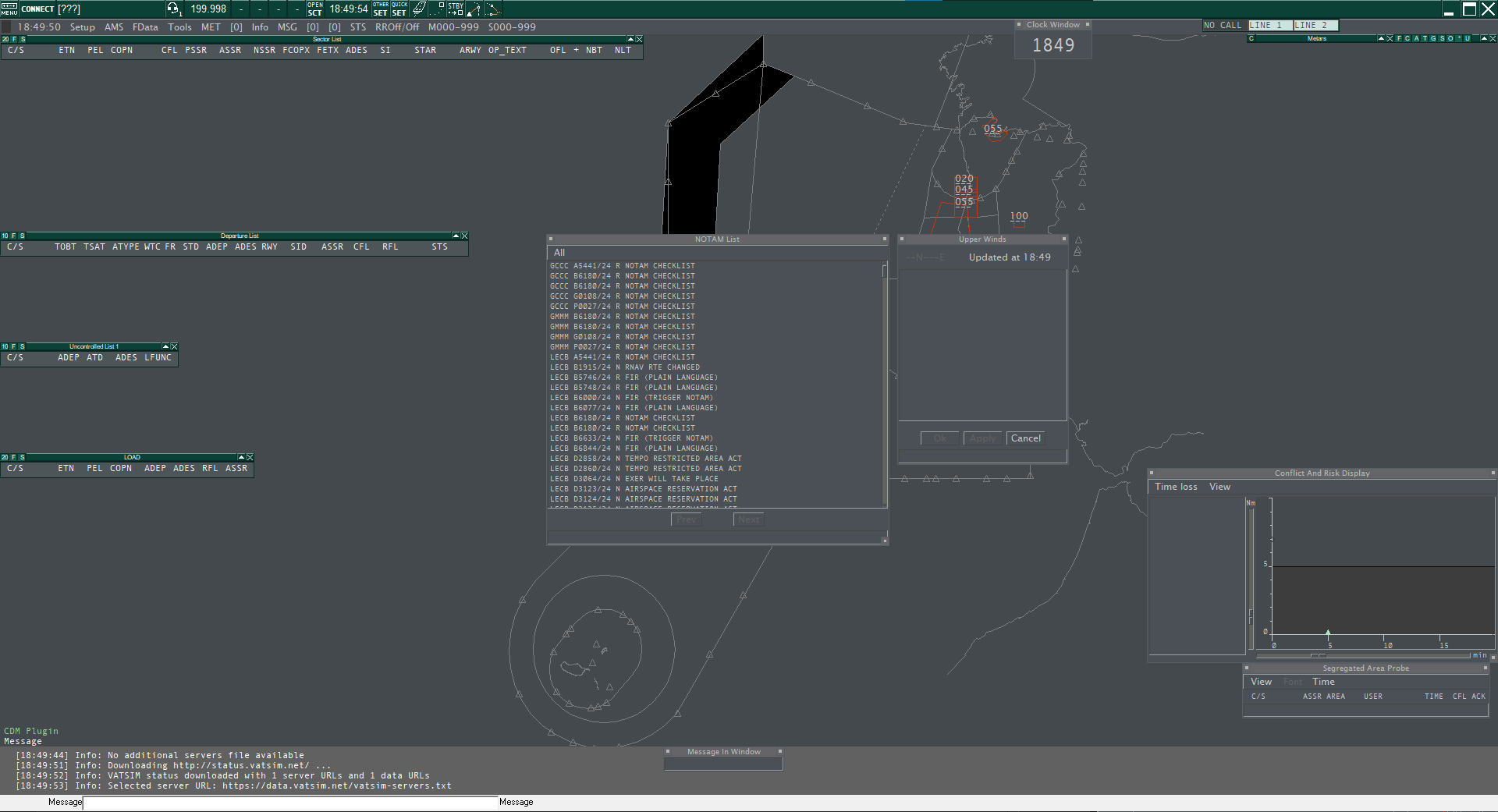
-
At the top of the window, click the
OTHER SETbutton and disable theAuto load last profile on startupoption.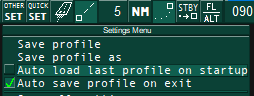
-
Close EuroScope. When prompted to Save Changes, press save.
-
Installation is complete. Make sure to always open EuroScope from the Windows Start menu.